TypeScript Explained: Advantages, JavaScript vs TypeScript, Compilation, and Deployment
1. What Is TypeScript?
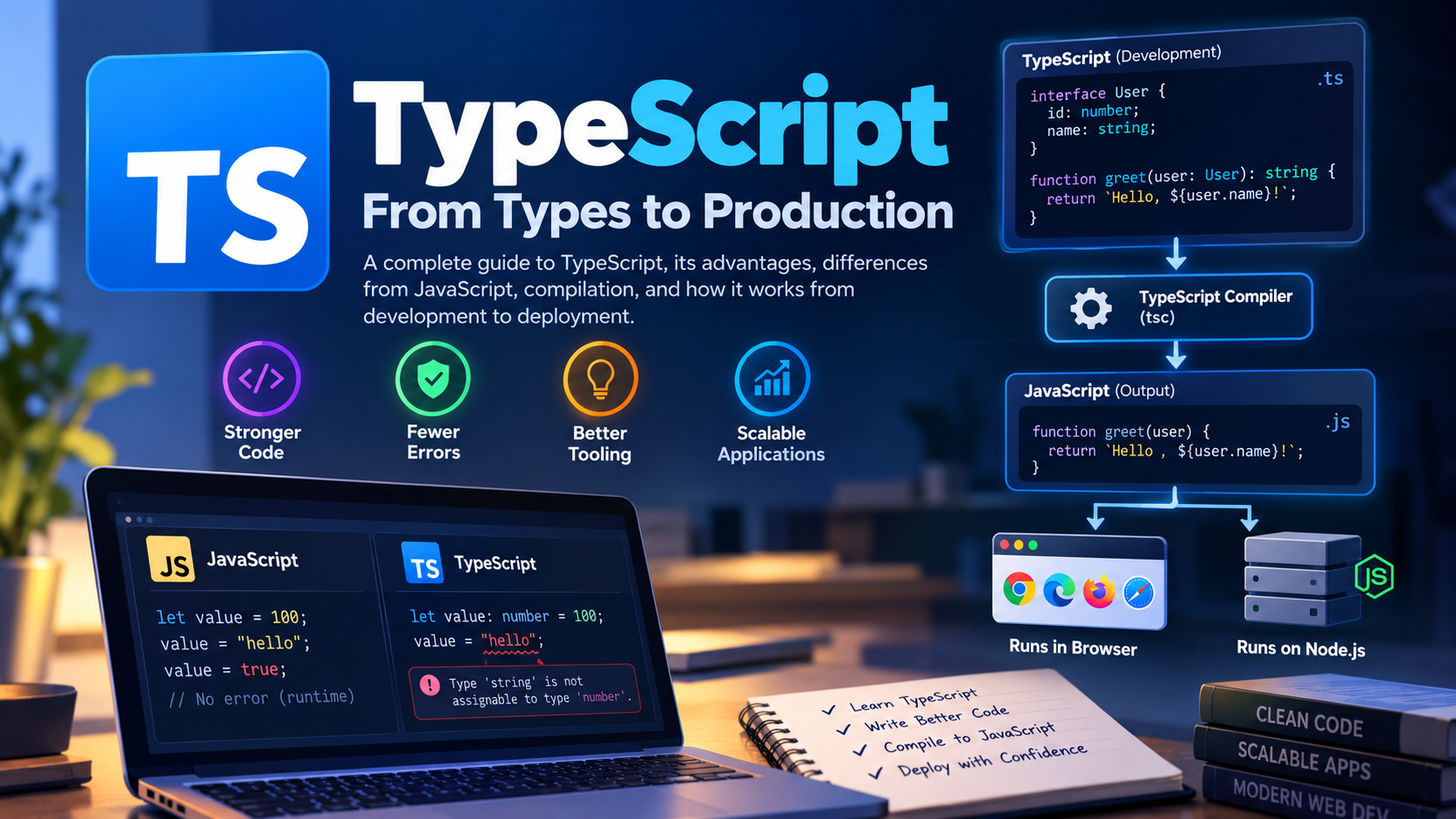
TypeScript is a programming language built on JavaScript that adds syntax for types and static type checking. It helps developers catch many errors before runtime, improve code readability, and maintain large applications more easily.
TypeScript was developed by Microsoft to address challenges that arise when JavaScript applications grow in size and complexity.
JavaScript is dynamically typed, which means a variable can hold values of different types during execution. This flexibility is useful, but it can also make mistakes harder to detect, especially in large projects with multiple developers.
Consider this JavaScript example:
let value = 100;
value = "Hello";
value = true;
This code is valid JavaScript because the variable can hold values of different types.
However, imagine a function that expects a number but receives a string. The program might produce an unexpected result or fail to behave as intended.
TypeScript helps address this problem by allowing developers to specify types and check whether values are being used consistently.
let value: number = 100;

value = 200;       // Valid
value = "Hello";   // Type error
Here, number specifies the expected type of value. TypeScript reports an error when a string is assigned to it.
TypeScript also improves the development experience through features such as autocomplete, type-aware suggestions, navigation, and safer refactoring.
An important point to understand is that TypeScript does not replace JavaScript. It builds on JavaScript, and TypeScript code is commonly transformed into JavaScript before execution.
Advantages of TypeScript
1. Early error detection
TypeScript catches many type-related mistakes during development, before the application executes.
2. Better developer experience
Type information helps editors provide autocomplete, identify invalid property access, and suggest function parameters and return types.
3. Improved maintainability
Types make the expected structure of data and the behavior of functions easier to understand, especially in large codebases.
4. Better collaboration
In a team, explicit types help developers understand how different parts of an application interact and what data they expect.
5. Easier refactoring
When a function signature, property, or interface changes, the type checker can identify many affected parts of the code.
Disadvantages of TypeScript
1. Additional setup
A project generally needs TypeScript configuration and a suitable development or build toolchain.
2. Learning curve
Developers need to understand types, interfaces, generics, unions, and other TypeScript concepts.
3. Build complexity
Many projects need a compilation or transpilation step before deployment. Type checking and build configuration add work to the development process.
4. Additional maintenance
Types and interfaces may need updating when application requirements change.
5. It does not eliminate every bug
TypeScript cannot automatically detect every logical error. It also does not validate external API responses at runtime simply because a type has been declared.
For example, a type might say that an API response contains a number, but the actual server could return a string. Runtime validation is needed when the application must verify external data.
2. Difference Between JavaScript and TypeScript
JavaScript and TypeScript are closely related, but they differ in how they handle types and how developers typically prepare code for execution.
| Feature | JavaScript | TypeScript |
|---|---|---|
| Typing model | Dynamically typed | Static type checking with gradual typing |
| Type annotations | Not supported as standard JavaScript syntax | Supported |
| Type-related error detection | Many errors appear during execution | Many type errors can be caught before execution |
| Compilation | Can execute directly in compatible runtimes | Usually transformed into JavaScript first |
| Editor support | Autocomplete and code navigation | Enhanced type-aware autocomplete and navigation |
| Setup | Can run without a separate compilation step | Usually requires TypeScript or compatible tooling |
| Maintainability | Depends on coding practices and project structure | Explicit types can improve maintainability |
| Typical use | Scripts, prototypes, and applications of any size | Particularly useful for large applications and shared codebases |
When should we use JavaScript?
JavaScript is a reasonable choice when:
Building small scripts or prototypes.
Creating a project where introducing a type system would add unnecessary overhead.
Working in an existing JavaScript codebase.
Using a tool or environment where TypeScript setup is not practical.
JavaScript is not limited to small applications. Large applications can also be built successfully with JavaScript.
When should we use TypeScript?
TypeScript is especially useful when:
Building medium-to-large applications.
Working with multiple developers.
Maintaining complex data structures and API contracts.
Refactoring a large codebase.
Wanting type-aware editor assistance and earlier error detection.
The choice depends on project requirements, team experience, tooling, and long-term maintenance needs.
3. Why Doesn't TypeScript Run Directly in the Browser?
To understand this, we first need to understand how browsers execute JavaScript.
Browsers support core web technologies such as HTML, CSS, and JavaScript. JavaScript is executed by a JavaScript engine built into the browser.
For example, Google Chrome uses the V8 JavaScript engine.
TypeScript adds syntax such as type annotations, interfaces, and type declarations that standard JavaScript engines do not generally interpret as executable JavaScript syntax.
Consider this TypeScript code:
function add(a: number, b: number): number {
  return a + b;
}
The type annotations : number help TypeScript check the code, but they are not part of the JavaScript function syntax used by the browser.
The code can be transformed into:
function add(a, b) {
  return a + b;
}
The resulting JavaScript can then execute in the browser.
How does TypeScript interact with the browser?
The usual process is:
A developer writes TypeScript source code.
TypeScript tooling checks the types and transforms the code into JavaScript.
The generated JavaScript is served to the browser.
The browser's JavaScript engine executes the JavaScript.
The application interacts with browser APIs, HTML elements, and other resources as needed.
The browser does not need to understand the original TypeScript type annotations because those annotations are normally removed during compilation.
What about Node.js?
Node.js also uses the V8 JavaScript engine, but it provides additional APIs for server-side development.
For example, Node.js provides facilities for working with files, networking, and processes. It also uses libraries such as libuv to support asynchronous I/O and event-loop operations.
V8 and libuv have different responsibilities: V8 executes JavaScript, while libuv supports Node.js's asynchronous I/O and related event-loop functionality.
TypeScript can be used for both frontend and backend development. In a typical setup, the generated JavaScript runs in the browser for frontend applications or in Node.js for backend applications.
4. TypeScript Installation and Compilation
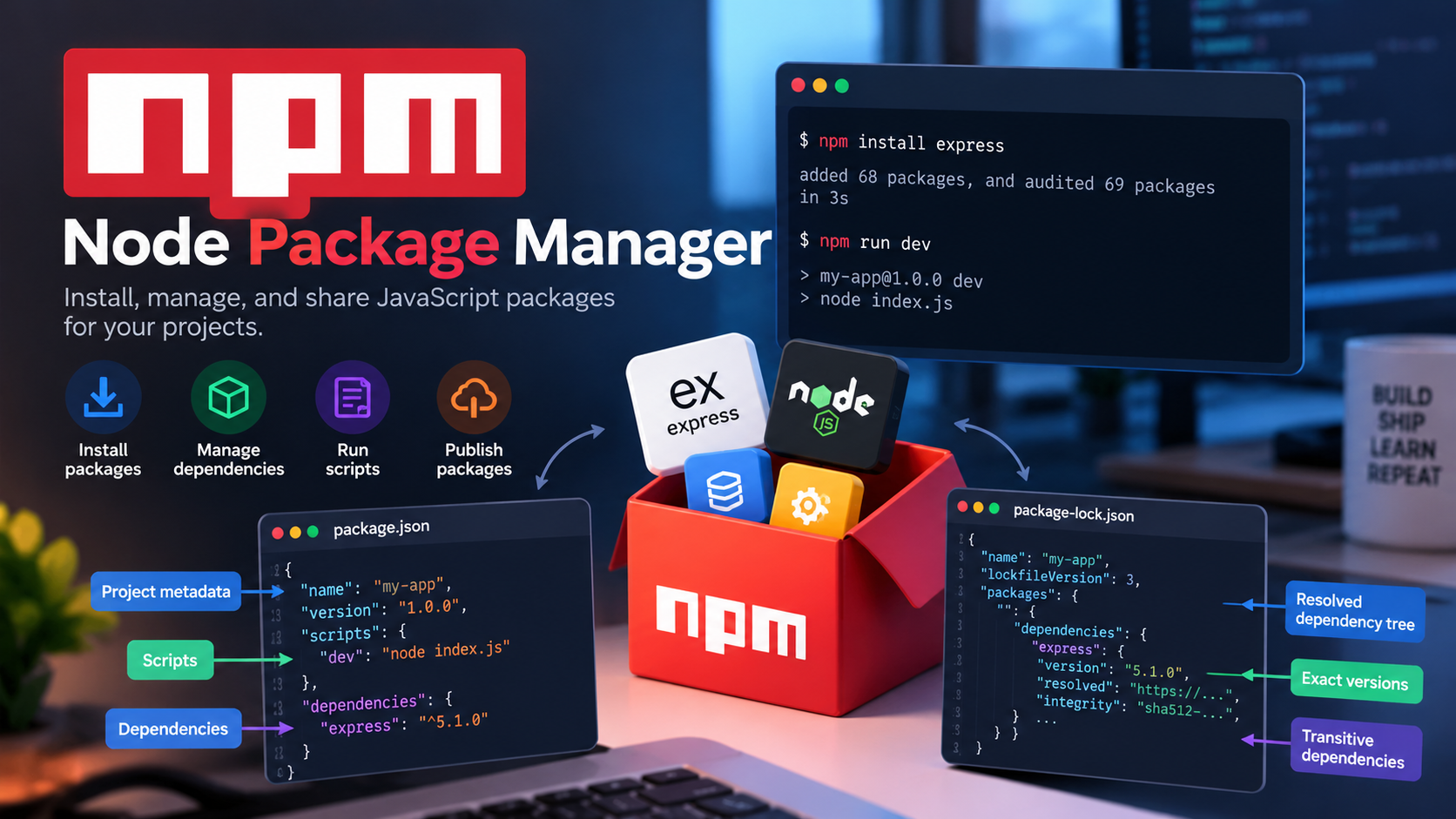
Before installing TypeScript, you generally need Node.js and npm.
Node.js provides a JavaScript runtime, while npm is a package manager that helps install and manage packages.
Step 1: Install Node.js
Install Node.js from the official website:
After installation, verify that Node.js and npm are available:
node -v
npm -v
These commands display the installed versions.
Step 2: Create a project
Create a directory for your project and initialize npm:
mkdir typescript-project
cd typescript-project
npm init -y
This creates a package.json file containing the project's metadata and other configuration.
Step 3: Install TypeScript
For a project-specific installation, run:
npm install -D typescript
The -D flag installs TypeScript as a development dependency because it is generally needed for development and building rather than as a runtime dependency of the compiled application.
You can then check the installed TypeScript version:
npx tsc --version
Here, tsc is the TypeScript compiler command-line tool, and npx runs the project-local version.
A global installation is also possible:
npm install -g typescript
A local installation is generally preferable for projects because it allows the project to specify the TypeScript version used by its developers and build process.
Step 4: Initialize the TypeScript configuration
Run:
npx tsc --init
This generates a tsconfig.json configuration file.
The configuration controls how TypeScript checks and compiles the project.
For example:
{
  "compilerOptions": {
    "target": "ES2020",
    "module": "ESNext",
    "rootDir": "./src",
    "outDir": "./dist",
    "strict": true
  },
  "include": ["src/**/*.ts"]
}
The important options are:
target: Specifies the JavaScript language version to emit.module: Controls the module format used in emitted JavaScript.rootDir: Specifies the source root used to organize emitted output.outDir: Specifies the output directory for generated files.strict: Enables a group of stricter type-checking options.include: Specifies the source files to include in the project.
One important distinction: rootDir does not determine which files are included in compilation. The include, exclude, and files settings, along with the project's imports and other compiler rules, influence which files are part of the program.
Step 5: Write TypeScript code
Create a directory named src and add a file called index.ts.
function greet(name: string): string {
  return `Hello, ${name}!`;
}

console.log(greet("Developer"));
The .ts extension identifies a TypeScript source file.
Step 6: Compile TypeScript into JavaScript
Run:
npx tsc
With the example configuration, TypeScript can emit the compiled JavaScript into the dist directory.
The resulting file will be:
dist/index.js
Its contents will be similar to:
function greet(name) {
  return `Hello, ${name}!`;
}

console.log(greet("Developer"));
The type annotations have been removed, leaving JavaScript that can run in a compatible JavaScript runtime.
You can execute this simple example using Node.js:
node dist/index.js
Expected output:
Hello, Developer!
Does compilation always mean type checking?
Not necessarily.
The standard TypeScript compiler can perform type checking and emit JavaScript. However, some tools, such as fast transpilers and bundlers, can transform TypeScript without performing a complete TypeScript type check.
For that reason, projects using such tools often run a separate type-checking command as part of their development or build process.
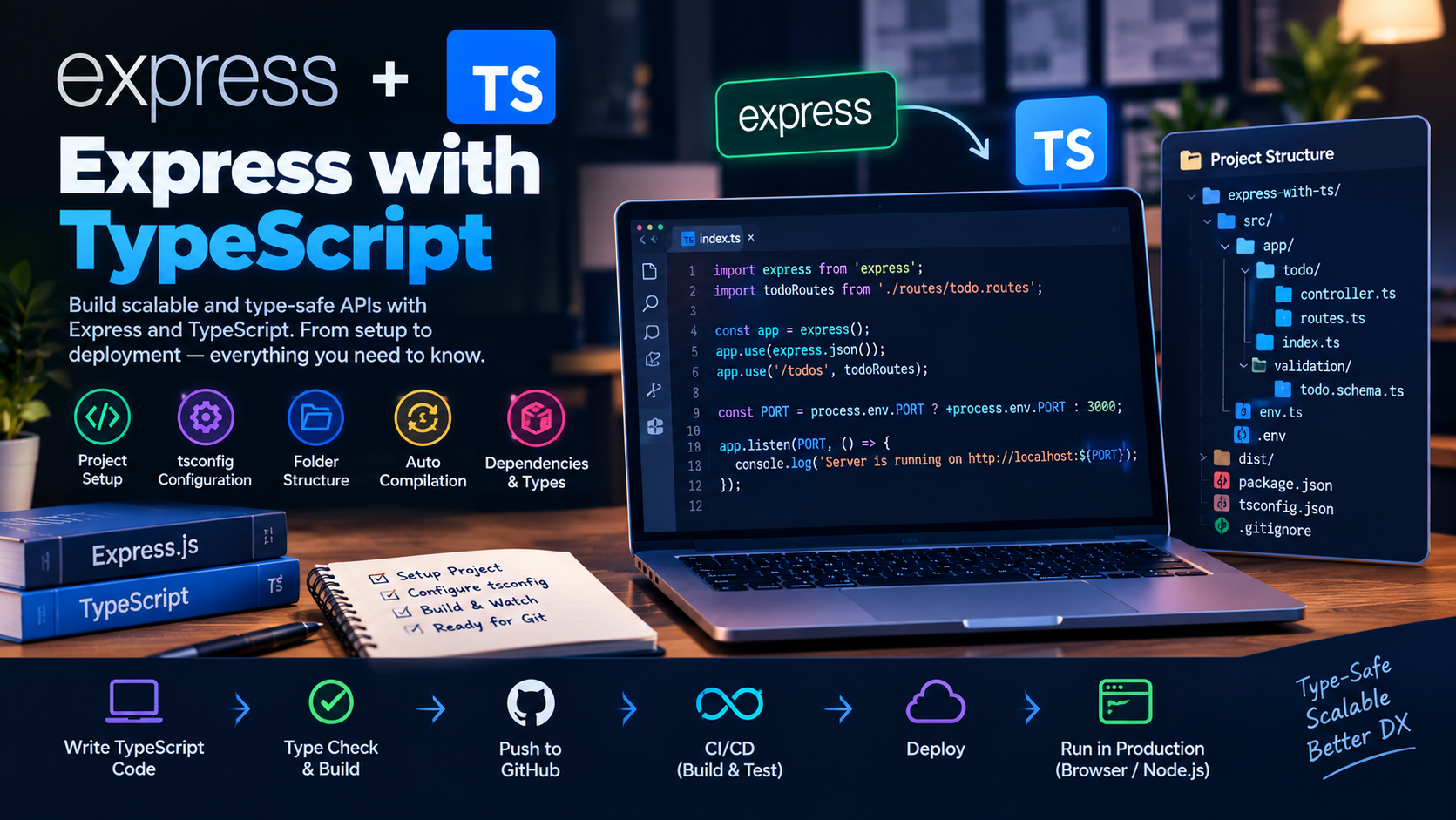
5. How JavaScript and TypeScript Work Together: Local Development to Deployment
TypeScript and JavaScript work together throughout the development lifecycle.
TypeScript is commonly used to write and check source code, while JavaScript is the output that executes in the target runtime.
Let's follow the workflow.
Step 1: Write TypeScript locally
Developers write source code in .ts files and define types, interfaces, functions, classes, and other application logic.
For example:
interface User {
  id: number;
  name: string;
}

function getUserName(user: User): string {
  return user.name;
}
The interface describes the expected structure of a user object, while the function signature specifies the expected input and output types.
Step 2: Type-check and test the application
Before building the application, developers can run the TypeScript checker:
npx tsc --noEmit
This checks the project without emitting JavaScript.
Tests can then verify the application's behavior. Type checking and testing serve different purposes: type checking identifies many structural and type-related mistakes, while tests evaluate behavior under specific conditions.
Step 3: Push the code to GitHub
Developers commit and push their source code and relevant project configuration to GitHub.
A typical repository contains:
TypeScript source files.
package.json.package-lock.json.tsconfig.json.Tests and build configuration.
The generated dist directory may or may not be committed, depending on the project's workflow.
Pushing code to GitHub does not automatically compile TypeScript unless a configured workflow or integration performs that step.
Step 4: Build the application
A CI/CD pipeline or hosting platform can install the dependencies and run the project's build process.
For example, the project's package.json might contain:
{
  "scripts": {
    "typecheck": "tsc --noEmit",
    "build": "tsc"
  }
}
The commands can then be run with:
npm run typecheck
npm run build
For a simple TypeScript project, the build command generates JavaScript in the configured output directory.
Larger frontend projects may use tools such as Vite or other bundlers to compile TypeScript, combine modules, and prepare static assets. The precise workflow depends on the project.
Step 5: Deploy the generated output
The deployment target determines how the generated JavaScript is used.
Frontend application
The hosting service serves JavaScript and other assets. The browser downloads those assets and executes the JavaScript using its JavaScript engine.
Backend application
The server runs the generated JavaScript using Node.js or another compatible JavaScript runtime.
The TypeScript source does not need to execute in the production environment when the application has already been compiled and the required JavaScript output has been deployed.
Step 6: What happens to TypeScript types in production?
Type annotations and interfaces are generally removed from emitted JavaScript.
For example, this TypeScript:
function multiply(a: number, b: number): number {
  return a * b;
}
Becomes:
function multiply(a, b) {
  return a * b;
}
The JavaScript function does not automatically enforce the TypeScript annotations at runtime.
If an API returns an unexpected value, the application can still receive that value. Developers must use runtime validation when they need to verify external data.
This is an important distinction: TypeScript checks code according to its type system during development or build processes, while runtime validation checks actual values while the application is running.
Conclusion
TypeScript extends JavaScript with static type checking and additional syntax that can make applications easier to develop and maintain.
Its type system helps catch many errors before execution, while its editor tooling improves code navigation, autocomplete, and refactoring. However, TypeScript introduces a learning curve and usually requires additional tooling.
The key concept is that TypeScript and JavaScript are not competing runtime environments. Developers commonly write and check TypeScript, transform it into JavaScript, and execute that JavaScript in a browser or a server-side runtime such as Node.js.
Understanding this workflow makes it easier to understand why TypeScript is used, how it is compiled, and how it fits into modern application development.