Express with TypeScript: Project Setup, Configuration, and Automatic Compilation
1. What Is Express?
Express is a web framework for Node.js that simplifies the process of building web servers and APIs.
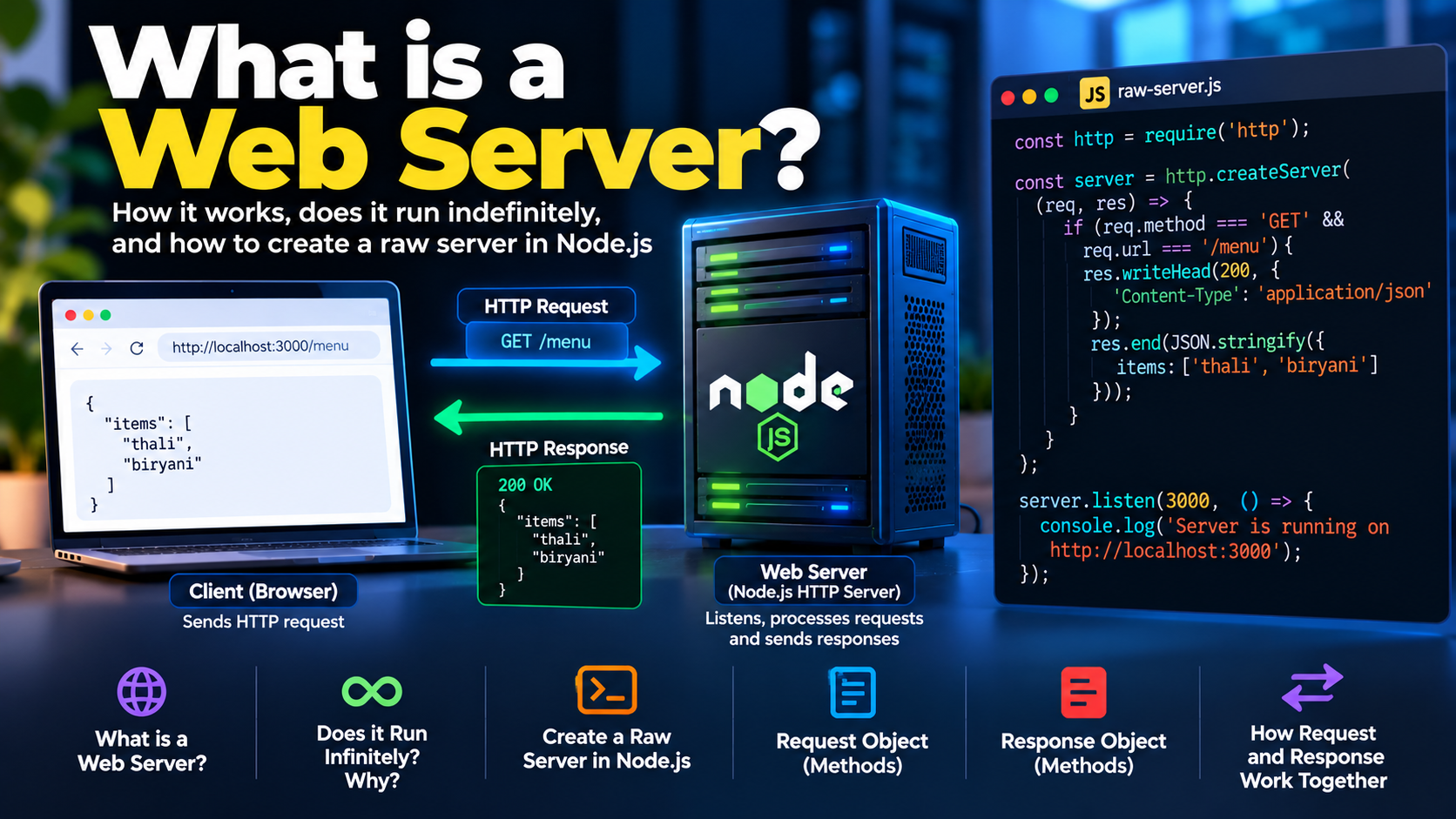
Node.js provides the built-in HTTP module for creating servers, receiving requests, and sending responses. However, when an application grows, manually managing routes, request parsing, middleware, and response handling can become difficult.
Express provides a higher-level API for these tasks.
For example, using raw Node.js, we might check the request method and URL manually:
if (req.method === "GET" && req.url === "/menu") {
  // Handle the request
}
With Express, the same route can be written as:
app.get("/menu", (req, res) => {
  res.json({
    items: ["thali", "biryani"]
  });
});
Express allows us to define routes using methods such as get(), post(), put(), patch(), and delete().
It also supports middleware, which allows us to execute reusable logic during request processing. Middleware can parse request bodies, authenticate users, log requests, validate data, and handle other cross-cutting concerns.
Why use Express with TypeScript?
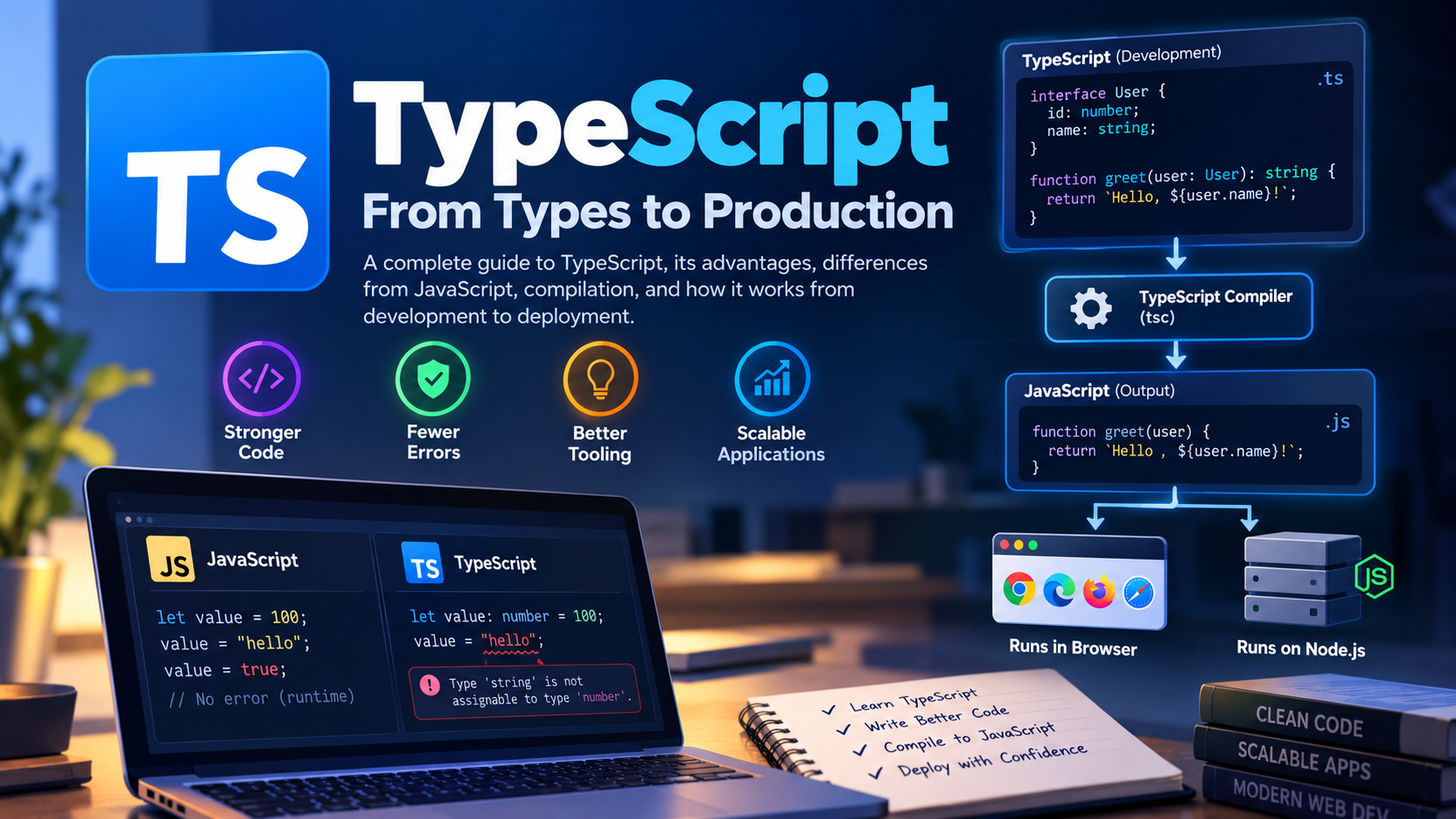
Express provides the web framework, while TypeScript provides static type checking and additional development-time tooling.
Together, they allow us to build APIs with a structured routing system, type-aware development, and better maintainability.
However, TypeScript types do not automatically validate incoming HTTP data. For that, we need runtime validation, such as Zod, or another validation library.
2. Setting Up an Express Project with TypeScript
We will use the following tools:
| Package | Purpose |
|---|---|
| Node.js | Runs the backend JavaScript application |
| npm | Installs and manages project packages |
| Express | Provides routing and middleware |
| TypeScript | Provides static type checking and compilation |
@types/express |
Provides Express type declarations |
@types/node |
Provides Node.js type declarations |
tsc-watch |
Watches TypeScript files and recompiles them |
| Zod | Validates runtime data and can infer TypeScript types |
The supplied project uses Express 5, TypeScript, tsc-watch, and Zod.
Step 1: Initialize the project
Create a project directory and initialize npm:
mkdir express-with-ts
cd express-with-ts
npm init -y
This creates a package.json file for the project.
Step 2: Install the dependencies
Install Express and Zod as application dependencies:
npm install express zod
Install TypeScript, its type declarations, and the watch tool as development dependencies:
npm install -D typescript @types/express @types/node tsc-watch
The distinction between dependencies and development dependencies is useful:
dependenciescontains packages needed by the application at runtime, such as Express and Zod.devDependenciescontains development and build tools, such as TypeScript andtsc-watch.
Type declaration packages help TypeScript understand the APIs provided by JavaScript packages.
For example, @types/express provides types for Express's request, response, application, and routing APIs.
These declarations support static checking; they do not validate HTTP requests at runtime.
Step 3: Configure the project as an ES module
The supplied package.json contains:
{
  "type": "module"
}
This tells Node.js to treat .js files in the package as ES modules.
That is why the project uses import and export syntax rather than CommonJS require() and module.exports.
The TypeScript compiler configuration must be compatible with this module system.
3. Understanding and Updating tsconfig.json
The tsconfig.json file configures the TypeScript compiler for the project.
The supplied configuration uses rootDir, outDir, module: "nodenext", target: "esnext", and strict type-checking options.
Here is a practical configuration for this Express project:
{
  "compilerOptions": {
    "target": "ES2022",
    "module": "NodeNext",
    "moduleResolution": "NodeNext",
    "rootDir": "./src",
    "outDir": "./dist",
    "types": ["node"],
    "strict": true,
    "esModuleInterop": true,
    "verbatimModuleSyntax": true,
    "sourceMap": true,
    "declaration": false,
    "skipLibCheck": true
  },
  "include": ["src/**/*.ts"],
  "exclude": ["node_modules", "dist"]
}
This is a simplified configuration adapted for the project, not a verbatim copy of the uploaded file.
Important compiler options
target
Specifies the JavaScript language version TypeScript should emit. ES2022 is an example target; the appropriate value depends on the supported Node.js versions and application requirements.
module and moduleResolution
NodeNext configures TypeScript to follow modern Node.js module-resolution behavior. This is useful for a project that uses "type": "module".
rootDir
Specifies the source root used to preserve directory structure in emitted files.
outDir
Specifies where generated JavaScript and other compiler outputs are written.
types
Controls which @types packages are automatically included as global type declarations. Because this application uses Node.js globals such as process, including "node" is appropriate for this configuration.
strict
Enables stricter type-checking rules, helping catch more mistakes during development.
sourceMap
Generates source maps that help debugging tools map emitted JavaScript back to the original TypeScript source.
include and exclude
Determine which files are considered part of the TypeScript project, subject to imports and other compiler rules.
One important distinction: rootDir does not select the files to compile. The include, exclude, and files options are responsible for file selection.
Why do TypeScript imports use .js extensions?
In the supplied project, imports look like this:
import todoRoutes from "./todo/routes.js";
Even though the source file is named routes.ts, using the .js extension is appropriate in this NodeNext setup.
TypeScript resolves the import to the corresponding TypeScript source during compilation and preserves a valid JavaScript import for the emitted code.
This matters because Node.js executes the generated JavaScript and needs imports that resolve correctly at runtime.
4. A Git-Ready Project Folder Structure
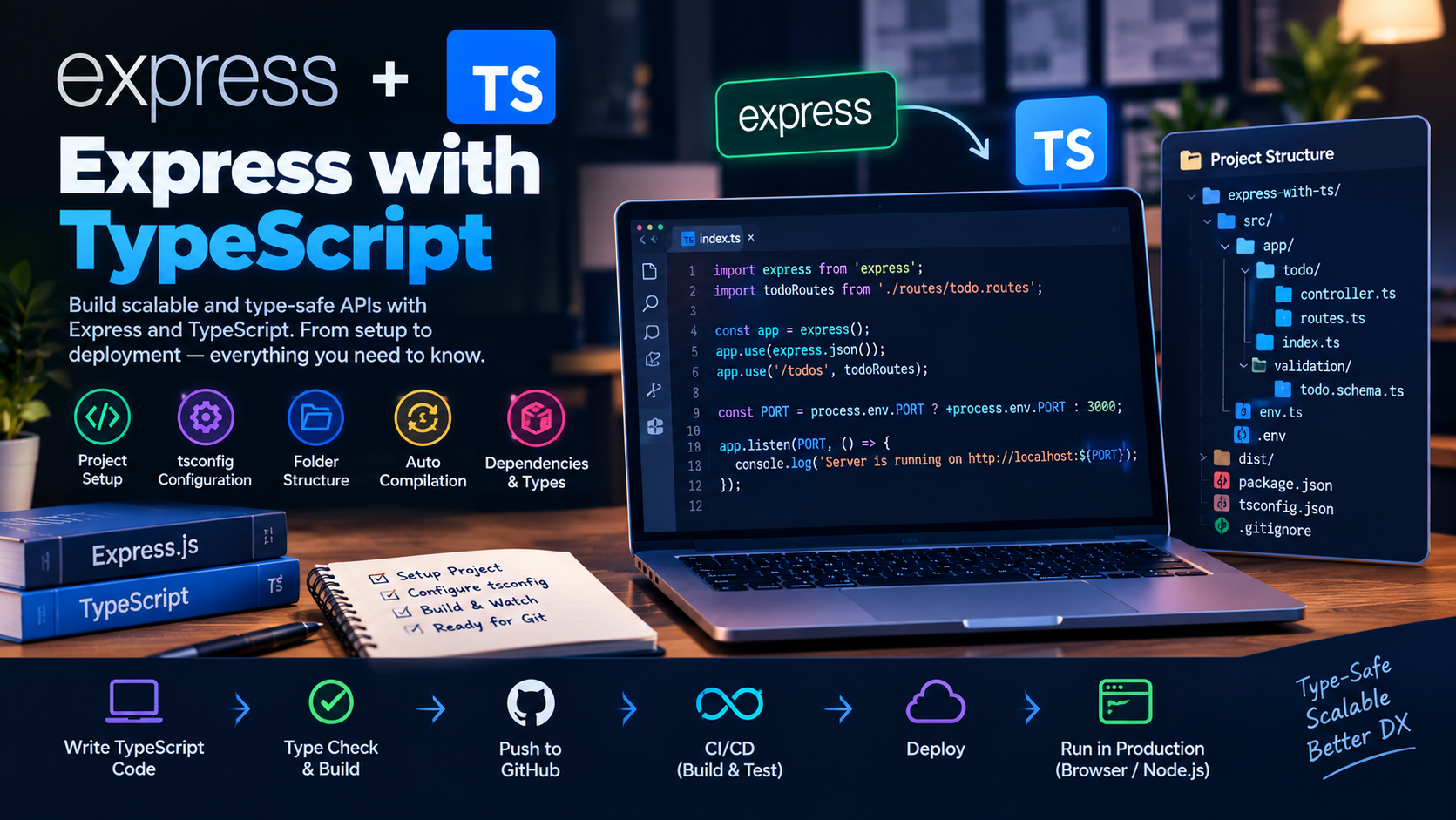
A backend project should separate the server entry point, application configuration, routes, controllers, and validation schemas.
The supplied files suggest the following organization:
express-with-ts/
├── src/
│   ├── index.ts
│   ├── env.ts
│   ├── app/
│   │   ├── index.ts
│   │   └── todo/
│   │       ├── routes.ts
│   │       └── controller.ts
│   └── validation/
│       └── todo.schema.ts
├── dist/
├── node_modules/
├── .env
├── .gitignore
├── package.json
├── package-lock.json
└── tsconfig.json
This layout reflects the imports and responsibilities shown in the supplied code. The dist and node_modules directories are generated or installed directories rather than source files that need to be committed.
What does each file do?
src/index.ts
The application entry point. It creates the HTTP server, selects the port, and starts listening for connections.
src/env.ts
Reads and validates environment variables. The supplied version uses Zod to validate the environment configuration.
src/app/index.ts
Creates the Express application, registers middleware, and mounts routes.
src/app/todo/routes.ts
Defines the Todo API endpoints and connects them to controller methods.
src/app/todo/controller.ts
Contains the logic for handling Todo requests.
src/validation/todo.schema.ts
Defines the Zod schema used to validate Todo data and infer its TypeScript type.
dist/
Contains the compiled JavaScript output.
node_modules/
Contains installed dependencies.
package-lock.json
Records the resolved dependency tree to support consistent dependency installations.
What should .gitignore contain?
The supplied .gitignore excludes common generated files and local dependencies. For this project, the most important entries include:
node_modules/
dist/
.env
*.tsbuildinfo
You can also ignore logs, editor-specific files, and other local artifacts as needed.
Do not commit secrets stored in .env. Commit package.json and package-lock.json so other developers and CI systems can install the intended dependencies.
Whether dist/ should be committed depends on the deployment workflow. In the workflow described here, it is generated during the build and does not need to be committed.
5. Configure Automatic TypeScript Compilation
During development, manually compiling the project every time a file changes is inconvenient.
The supplied project uses tsc-watch to monitor TypeScript files, recompile when changes occur, and run the generated JavaScript after a successful compilation.
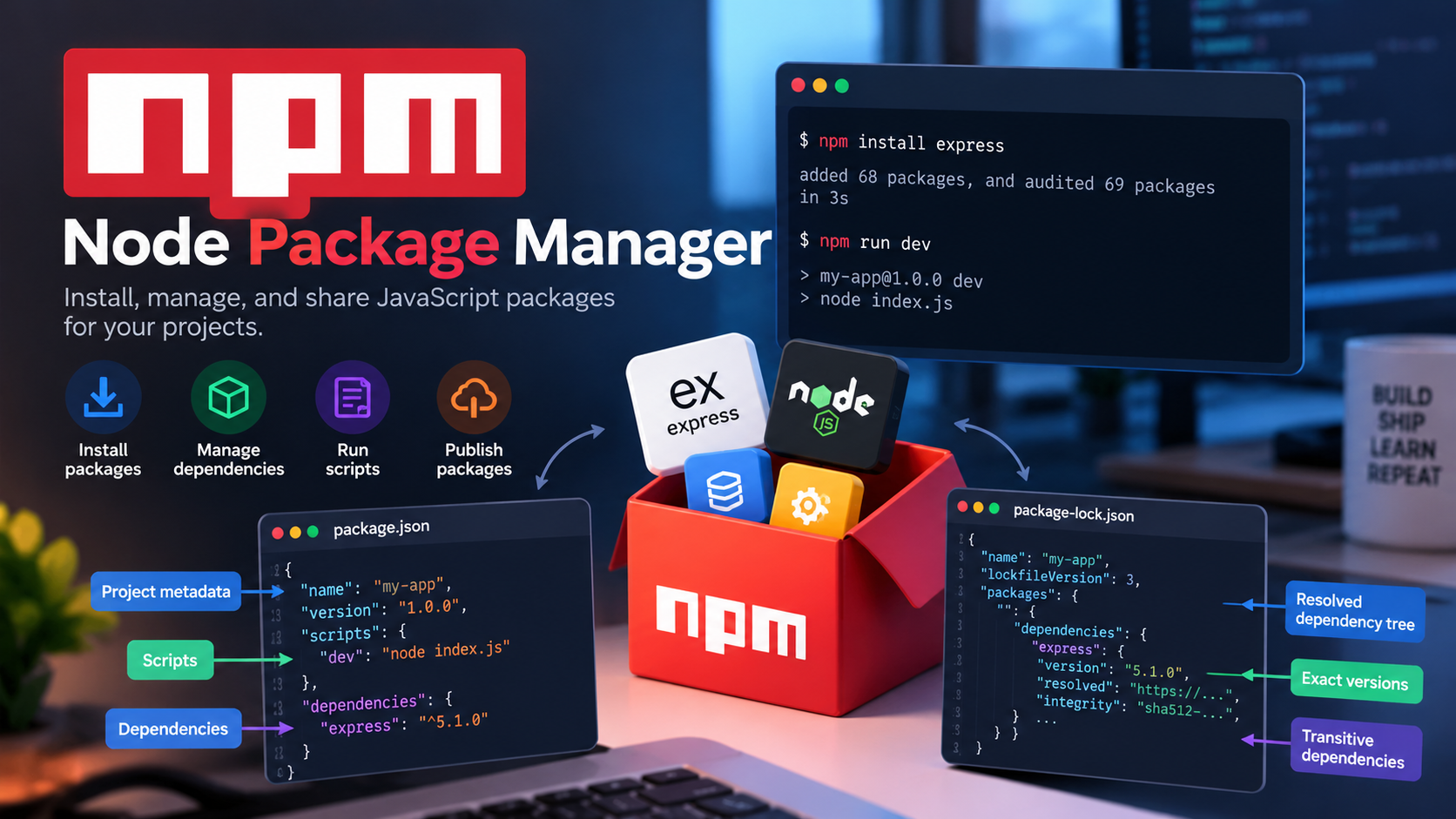
Its package.json contains:
{
  "scripts": {
    "dev": "tsc-watch --onSuccess \"node dist/index.js\""
  }
}
Run the development server with:
npm run dev
The general workflow is:
tsc-watchmonitors the TypeScript project.When a relevant file changes, TypeScript recompiles the project.
If compilation succeeds,
--onSuccessexecutesnode dist/index.js.The server starts or restarts using the generated JavaScript.
This avoids manually running the compiler after every change.
The tsc-watch tool is responsible for monitoring and invoking the configured command. The underlying TypeScript compiler performs the compilation.
A useful alternative
For a simpler setup, you can separate compilation and execution:
{
  "scripts": {
    "build": "tsc",
    "start": "node dist/index.js",
    "typecheck": "tsc --noEmit"
  }
}
In that arrangement:
npm run buildcompiles TypeScript.npm startruns the generated JavaScript.npm run typecheckchecks types without generating output.
For automatic recompilation, you would add a watch command or a tool that also restarts the server.
The supplied tsc-watch setup is convenient for development, while separate build, start, and typecheck scripts make the production workflow more explicit.
6. Understanding the Express Application
Let's connect the folder structure to the code.
Step 1: Create the Express application
The supplied application factory follows this pattern:
import express from "express";
import type { Application } from "express";
import todoRoutes from "./todo/routes.js";

export function createServerApplication(): Application {
  const app = express();

  app.use(express.json());
  app.use("/todos", todoRoutes);

  return app;
}
The function creates and configures an Express application.
express.json() is middleware that parses incoming JSON request bodies when the request has an appropriate content type.
The line:
app.use("/todos", todoRoutes);
mounts the Todo router under /todos.
The router is responsible for handling the endpoints below that path.
Step 2: Define the routes
The supplied routes file contains:
import { Router } from "express";
import TodoController from "./controller.js";

const router = Router();
const controller = new TodoController();

router.get(
  "/",
  controller.handleGetAllTodos.bind(controller)
);

router.post(
  "/",
  controller.handleCreateTodo.bind(controller)
);

export default router;
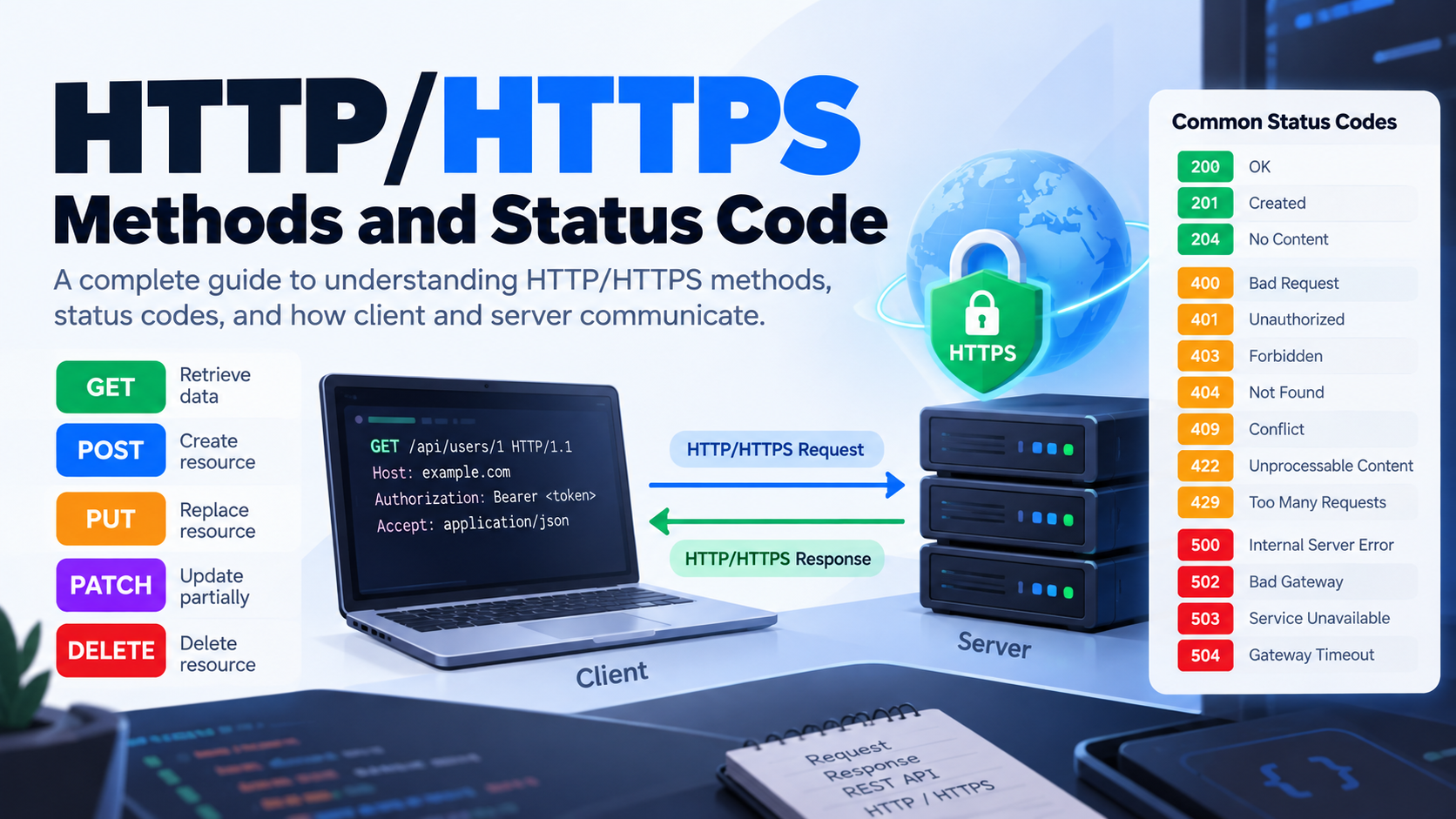
Because this router is mounted at /todos, the resulting endpoints are:
| Method | Endpoint | Purpose |
|---|---|---|
GET |
/todos |
Retrieve all Todo items |
POST |
/todos |
Create a Todo item |
The supplied code also contains commented placeholders for future GET /:id, PUT /:id, and DELETE /:id routes.
The use of .bind(controller) ensures that controller methods called by Express retain the controller instance as their this value.
Step 3: Create the validation schema
The supplied Zod schema is:
import { z } from "zod";

export const todoValidationSchema = z.object({
  id: z.string().describe("ID for the todo item"),
  title: z.string().describe("Title for the todo item"),
  description: z.string()
    .describe("Description for the todo item")
    .optional(),
  isCompleted: z.boolean()
    .default(false)
    .describe("Completion status for the todo item")
});

export type Todo = z.infer<typeof todoValidationSchema>;
This schema specifies the expected structure of a Todo item.
It requires id and title to be strings, permits an optional description, and defaults isCompleted to false when that property is omitted.
The line:
export type Todo = z.infer<typeof todoValidationSchema>;
infers the TypeScript type from the Zod schema.
This reduces duplication: developers can use the same schema to validate incoming data at runtime and derive a corresponding type during development.
Type inference alone does not validate data. The runtime validation occurs when the schema's parsing methods are called.
Step 4: Handle requests in the controller
The supplied controller maintains an in-memory array and implements two operations:
import type { Request, Response } from "express";
import {
  todoValidationSchema,
  type Todo
} from "../../validation/todo.schema.js";

class TodoController {
  private _db: Todo[];

  constructor() {
    this._db = [];
  }

  public handleGetAllTodos(req: Request, res: Response) {
    return res.json({ todos: this._db });
  }

  public async handleCreateTodo(req: Request, res: Response) {
    const validatedData = await todoValidationSchema
      .parseAsync(req.body);

    this._db.push(validatedData);

    return res.status(201).json({
      message: "Todo created successfully"
    });
  }
}

export default TodoController;
This simplified version shows the core logic from the supplied controller.
The GET handler returns the current Todo array. The POST handler validates the incoming request body, adds the validated item to the array, and responds with HTTP status 201 Created.
The array is only an in-memory data store. Its contents disappear when the process restarts, and it is not a substitute for a persistent database.
In production, the controller would normally interact with a database or service layer.
Also, validation errors should not be reported as generic server errors. A robust implementation should handle Zod validation failures separately and return an appropriate client error, such as 400 Bad Request or 422 Unprocessable Content, depending on the API's conventions.
7. Starting the HTTP Server
The supplied entry point creates a Node.js HTTP server around the Express application:
import http from "node:http";
import { env } from "./env.js";
import {
  createServerApplication
} from "./app/index.js";

async function main() {
  const app = createServerApplication();
  const server = http.createServer(app);

  const PORT = env.PORT ? Number(env.PORT) : 3000;

  server.listen(PORT, () => {
    console.log(`Server is running on port ${PORT}`);
  });
}

main();
This example preserves the architecture of the supplied entry point while making the startup flow more explicit.
createServerApplication() returns the configured Express application. http.createServer(app) creates the underlying HTTP server, and server.listen() starts listening for requests.
The port comes from the validated environment configuration when available, otherwise it defaults to 3000.
In a production application, environment variables should be validated carefully, including checking that the port is a valid number in the permitted range.
8. How the Complete Project Works
The complete request flow looks like this:
The client sends an HTTP request to the Node.js server.
Node.js receives the request and passes it to the Express application.
Express executes the configured middleware, including JSON body parsing.
The router matches the HTTP method and URL.
The matching controller handles the request.
For a Todo creation request, Zod validates the request body.
The controller performs the operation and creates an HTTP response.
Node.js sends that response back to the client.
The development workflow is separate from the request flow:
Developers write TypeScript source files.
tsc-watchdetects changes.TypeScript compiles the project into
dist.The configured command runs the generated JavaScript.
The Node.js server handles requests using the compiled application.
This separation is important. TypeScript and its compiler support development, while Express and Node.js handle incoming requests at runtime.
Conclusion
Express simplifies HTTP server development by providing routing, middleware, and convenient request and response APIs. TypeScript adds static type checking, while Zod can validate actual data at runtime.
A well-organized project separates startup configuration, application setup, routes, controllers, and validation schemas. The TypeScript compiler produces JavaScript, and tools such as tsc-watch automate recompilation during development.
Understanding these responsibilities makes it easier to build, debug, test, and deploy backend applications.